Navigating the AWS Management Console can feel overwhelming, but mastering it unlocks powerful control over your cloud infrastructure. This guide breaks down everything you need to know—from setup to advanced tools—in a clear, actionable way.

What Is the AWS Management Console?

The AWS Management Console is a web-based user interface that allows users to interact with Amazon Web Services (AWS) offerings. It provides a visual, point-and-click environment to manage resources like EC2 instances, S3 buckets, Lambda functions, and more. Unlike command-line tools or APIs, the console is ideal for beginners and those who prefer a graphical interface for cloud management.
Core Purpose and Functionality
The primary goal of the AWS Management Console is to simplify cloud operations. It enables users to provision, configure, monitor, and troubleshoot AWS services without writing code. Whether launching a virtual server or setting up a database, the console streamlines the process through intuitive menus and dashboards.
- Provides access to over 200 AWS services
- Offers real-time monitoring and alerts
- Supports multi-account and multi-region navigation
How It Compares to CLI and SDKs
While the AWS Command Line Interface (CLI) and Software Development Kits (SDKs) offer automation and scripting capabilities, the AWS Management Console excels in accessibility and ease of use. It’s perfect for quick tasks, learning AWS services, or troubleshooting issues visually.
“The AWS Management Console is the front door to the cloud for millions of developers and administrators.” — AWS Official Documentation
Getting Started with the AWS Management Console
Setting up access to the AWS Management Console is the first step toward managing your cloud environment. This process involves creating an AWS account, setting up Identity and Access Management (IAM), and navigating the initial dashboard.
Creating an AWS Account
To begin, visit the AWS homepage and click “Create an AWS Account.” You’ll need to provide basic information such as your email, password, and payment method. AWS offers a Free Tier with limited usage of many services for 12 months, making it ideal for learning and small projects.
- Verify your email address
- Enter credit card details (required even for Free Tier)
- Choose a support plan (Basic is free)
Setting Up IAM Users and Roles
After account creation, avoid using the root user for daily tasks. Instead, create IAM users with specific permissions. IAM (Identity and Access Management) ensures secure access control. For example, you can grant a developer access only to EC2 and S3, while restricting database permissions.
From the AWS Management Console, navigate to IAM, create a new user, assign policies, and generate login credentials. This practice follows the principle of least privilege, enhancing security.
Navigating the AWS Management Console Interface
Once logged in, the AWS Management Console presents a clean, service-oriented dashboard. Understanding its layout is crucial for efficient navigation and resource management.
Dashboard Overview and Key Sections
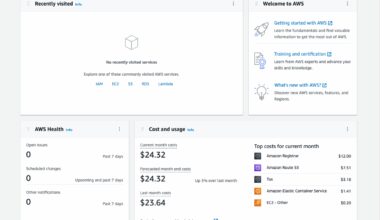
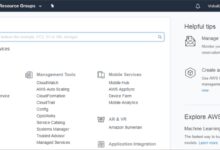
The console dashboard displays recent activity, service health, cost trends, and quick links to popular services. The top navigation bar includes search, region selector, support center, and account settings. The left-hand sidebar lists all available AWS services, grouped by category such as Compute, Storage, and Networking.
- Search bar: Quickly find services by name
- Region selector: Switch between global regions (e.g., US East, EU West)
- Service menu: Expandable categories for easy browsing
Customizing the Console Experience
Users can personalize the AWS Management Console by pinning frequently used services, adjusting theme settings (light or dark mode), and setting default regions. You can also save custom views and filter resources by tags, making it easier to manage complex environments.
For teams, enabling AWS Console Mobile is useful for monitoring alerts on the go. This feature integrates with AWS Budgets and CloudWatch to send real-time notifications.
Core Services Accessible via AWS Management Console
The AWS Management Console serves as a gateway to a vast ecosystem of cloud services. Below are some of the most widely used services accessible directly through the interface.
Amazon EC2 (Elastic Compute Cloud)
EC2 allows users to launch virtual servers in the cloud. Through the AWS Management Console, you can launch instances, configure security groups, attach storage volumes, and monitor performance metrics. The launch wizard guides you step-by-step through instance configuration, including AMI selection, instance type, and key pairs.
- Choose from on-demand, reserved, or spot instances
- Monitor CPU, network, and disk usage via CloudWatch
- Stop, start, or terminate instances with one click
Amazon S3 (Simple Storage Service)
S3 is AWS’s scalable object storage service. In the AWS Management Console, you can create buckets, upload files, set permissions, and enable versioning or encryption. The interface also allows you to configure lifecycle rules, cross-region replication, and static website hosting.
For example, you can drag and drop files into a bucket, set public or private access via bucket policies, and view storage analytics. S3 integrates seamlessly with other services like CloudFront and Lambda.
AWS Lambda and Serverless Computing
Lambda lets you run code without provisioning servers. The AWS Management Console provides a code editor, configuration panel, and execution logs. You can create functions in Node.js, Python, Java, and other runtimes, set triggers (e.g., S3 uploads or API Gateway), and monitor invocations and durations.
“Serverless doesn’t mean no servers—it means no server management.” — AWS Blog
Security and Access Control in the AWS Management Console
Security is paramount in cloud environments. The AWS Management Console includes robust tools to manage access, detect threats, and enforce compliance policies.
Using IAM for User and Permission Management
IAM is central to securing your AWS environment. Through the AWS Management Console, you can create users, groups, roles, and policies. Policies are JSON documents that define what actions are allowed or denied on specific resources.
- Create groups (e.g., Developers, Admins) and assign policies
- Use role-based access for EC2 instances or cross-account access
- Enable multi-factor authentication (MFA) for added security
Monitoring with AWS CloudTrail and CloudWatch
CloudTrail logs all API calls made in your account, including those initiated via the AWS Management Console. This audit trail helps track user activity, troubleshoot issues, and meet compliance requirements. CloudWatch, on the other hand, monitors resource metrics and logs, allowing you to set alarms and automate responses.
For instance, you can create a CloudWatch alarm that triggers an SNS notification when CPU usage exceeds 80%. Both tools are accessible directly from the console, providing real-time visibility.
Cost Management and Billing Insights
One of the most valuable features of the AWS Management Console is its ability to track and optimize cloud spending. Uncontrolled costs are a common challenge in cloud adoption, but AWS provides tools to gain financial clarity.
Using AWS Cost Explorer
Cost Explorer offers interactive visualizations of your spending patterns over time. You can filter by service, region, linked accounts, and tags. This tool helps identify underutilized resources, such as idle EC2 instances or unattached EBS volumes, which can be terminated to save costs.
- View daily or monthly cost trends
- Forecast future spending based on historical data
- Compare usage across different services
Setting Up Budgets and Alerts
AWS Budgets allows you to define custom spending limits. When your usage approaches or exceeds the threshold, the console sends alerts via email or SNS. For example, you can set a $100 monthly budget for development environments and receive warnings at 50%, 75%, and 100%.
This proactive approach prevents bill shock and encourages cost-conscious behavior across teams. Budgets can be based on actual costs, usage, or reservations.
Advanced Features and Productivity Tools
Beyond basic service management, the AWS Management Console includes advanced tools that enhance productivity and streamline operations.
AWS CloudShell: Terminal in the Browser
CloudShell is a browser-based shell available directly in the AWS Management Console. It provides a pre-authenticated environment with AWS CLI pre-installed, eliminating the need to configure local tools. You can run commands, manage resources, and automate tasks without leaving the console.
- No setup required—accessible with one click
- Integrated with your current IAM permissions
- Supports Bash and PowerShell
Service Quotas and Limits Monitoring
AWS imposes default limits on resources (e.g., number of EC2 instances per region). The Service Quotas dashboard in the AWS Management Console lets you view current usage, request increases, and set up alerts. This prevents deployment failures due to quota exhaustion.
For example, if your application scales rapidly and hits the VPC limit, Service Quotas will notify you before it becomes a critical issue.
Best Practices for Using the AWS Management Console
To maximize efficiency and security, follow these best practices when using the AWS Management Console.
Organize Resources with Tags
Tagging resources (e.g., Name, Environment, Owner) helps categorize and manage them effectively. Tags can be used for cost allocation, automation, and access control. For instance, you can create a cost report filtered by the “Production” tag or automate shutdowns for resources tagged “Dev-NonCritical.”
Use Multi-Factor Authentication (MFA)
Always enable MFA for all IAM users, especially those with administrative privileges. MFA adds a second layer of security by requiring a time-based code from a mobile app or hardware token. This significantly reduces the risk of unauthorized access, even if credentials are compromised.
Leverage AWS Organizations for Multi-Account Management
For enterprises, managing multiple AWS accounts can be complex. AWS Organizations allows you to centrally manage accounts, apply service control policies (SCPs), and consolidate billing. Through the AWS Management Console, you can create organizational units (OUs), invite member accounts, and enforce governance rules.
“Centralized governance and consolidated billing are key benefits of AWS Organizations.” — AWS Well-Architected Framework
What is the AWS Management Console?
The AWS Management Console is a web-based interface that allows users to manage Amazon Web Services. It provides a graphical way to configure, monitor, and control AWS resources like EC2, S3, and Lambda without using code.
How do I access the AWS Management Console?
You can access the AWS Management Console by visiting https://aws.amazon.com/console/, signing in with your AWS account credentials, and navigating to the desired service.
Is the AWS Management Console free to use?
Yes, the AWS Management Console itself is free. You only pay for the AWS services you use (e.g., EC2 instances, S3 storage). There is no additional charge for using the console interface.
Can I customize the AWS Management Console dashboard?
Yes, you can customize the dashboard by pinning frequently used services, changing the theme (light/dark mode), setting default regions, and saving filtered views based on tags or resource types.
How can I improve security in the AWS Management Console?
Enhance security by enabling multi-factor authentication (MFA), using IAM roles and policies, avoiding root user access, monitoring activity with CloudTrail, and setting up alerts for unusual behavior.
Mastering the AWS Management Console is essential for anyone working with AWS. From launching your first EC2 instance to monitoring costs and securing access, the console provides a powerful, user-friendly interface. By leveraging its features—like CloudShell, Cost Explorer, and IAM—you can manage your cloud environment efficiently and securely. Whether you’re a beginner or an experienced cloud professional, continuous learning and best practices will help you get the most out of the AWS Management Console.
Recommended for you 👇
Further Reading: